 Callme TimerAll apps ↗
The simplest option: say it up front
Before a meeting, a date, a party or a long dinner, decide how long you want to stay. If you can, just say “I need to leave around eight,” and say goodbye when it’s time. You don’t need an emergency to leave.
If you really want a call to break things up, ask a friend to ring you at a set time. They have to remember, though, and they might get busy, lose signal, or you might have silenced your phone. Plan an ordinary call; there’s no need to invent a crisis.
If you’re only worried about losing track of time, the built-in Clock app is enough: set an alarm if you know when to leave, or a timer if you know how long you’ll stay. Clock alarms still sound in silent mode and with Do Not Disturb on; see Apple’s alarm guide.
Want it to look like a call? Here’s the setup
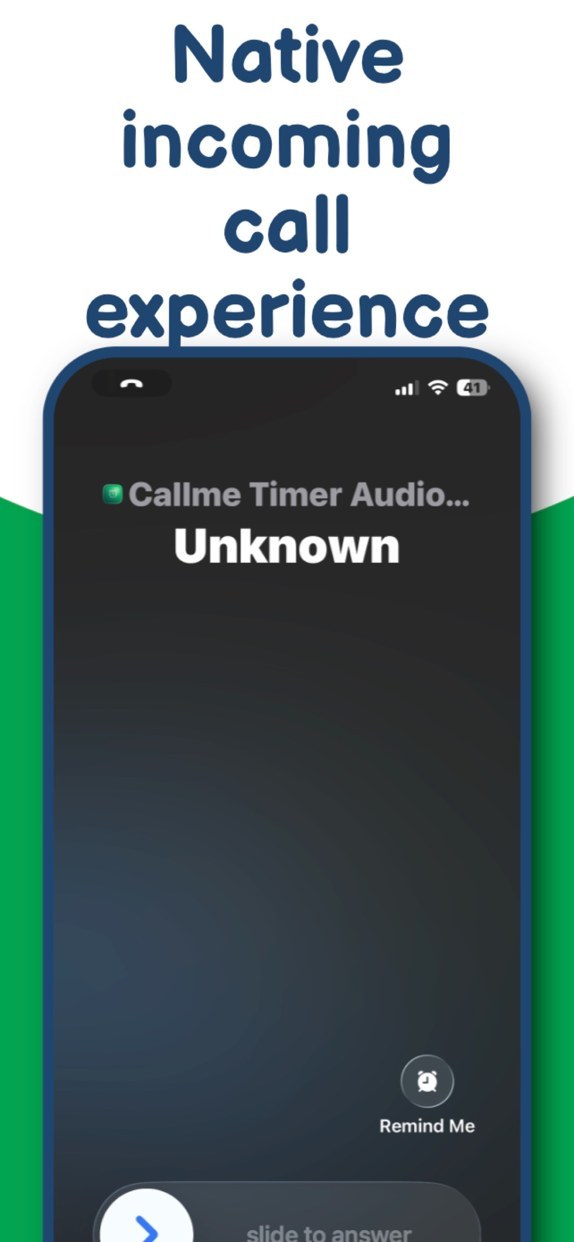
Callme Timer does one simple thing: when the time comes, it reminds you with the incoming-call screen you already know, so nobody has to watch the clock for you. The free version includes quick triggers and custom countdowns up to 24 hours, so you don’t need Pro for an occasional exit.
- Give the caller a name. Touch and hold an existing scene, choose Edit, and rename it to something plain like “Assistant” or “Home”. It’s only the name shown on your phone; it doesn’t contact anyone. You can’t set a custom number or photo at the moment.
- Try it for one minute. Open Custom, choose that scene, set one minute, start it and lock your phone. Check the screen and sound are what you expect, then set the real length of your stay.
- When it rings, keep it simple. Pick up, say sorry and go. No need to say someone’s in trouble, and no need to show anyone your screen.
One detail worth knowing: if Callme Timer is still open on screen when the countdown ends, it waits until the app goes to the background before showing the call. On the Lock Screen you’ll usually get the full-screen call view; if you’re using another app, it may appear as a banner instead. iOS decides. While you’re out, don’t swipe the app away in the app switcher.
Don’t count on it alone for these
- It absolutely has to ring on time: a Clock alarm is more dependable. Callme Timer may be quiet in silent mode, and with a Focus on, iOS can decline to show the “call” at all. Whether it fires on time in Low Power Mode is also up to iOS.
- You need a real person on the line: it doesn’t connect to anyone. Pro’s My Recordings can play audio you recorded after you answer, but it won’t hold a conversation.
- You don’t want any trace: it may appear in the Phone app’s Recents. Don’t call it back as if it were real; what happens if you do isn’t guaranteed.
Callme Timer is a free download with an optional Pro purchase, available in regions such as the US App Store; it isn’t currently offered in mainland China.
Frequently asked questions
The details before you begin
Will someone talk when I answer?
No real person. Pro’s My Recordings lets you play a recording after you answer, but it won’t talk back.
What do Pro’s callback and auto-hangup do?
Callback rings you again after you decline, with an interval and number of times you choose. Auto-hangup stops an unanswered call after a set time; once you answer, it no longer applies.
Should I use Call Queue for several calls in a row?
Usually not. One call is enough to leave; a string of them looks staged.
Will it show up in Recents?
It may. Don’t call it back as if it were a real call; the result isn’t guaranteed.
Can it look exactly like a real contact calling?
Not guaranteed. iOS manages the call screen, so it won’t match a real contact’s call exactly.
Sources & scope
Written by Callme Timer’s developer. Features checked against the Callme Timer page, product data and the app’s source code on 4 November 2026. Behaviour in silent mode, with a Focus on and on the Lock Screen was not tested on a device; it is described conservatively from Apple’s documentation and iOS rules.