 MemoKAll apps ↗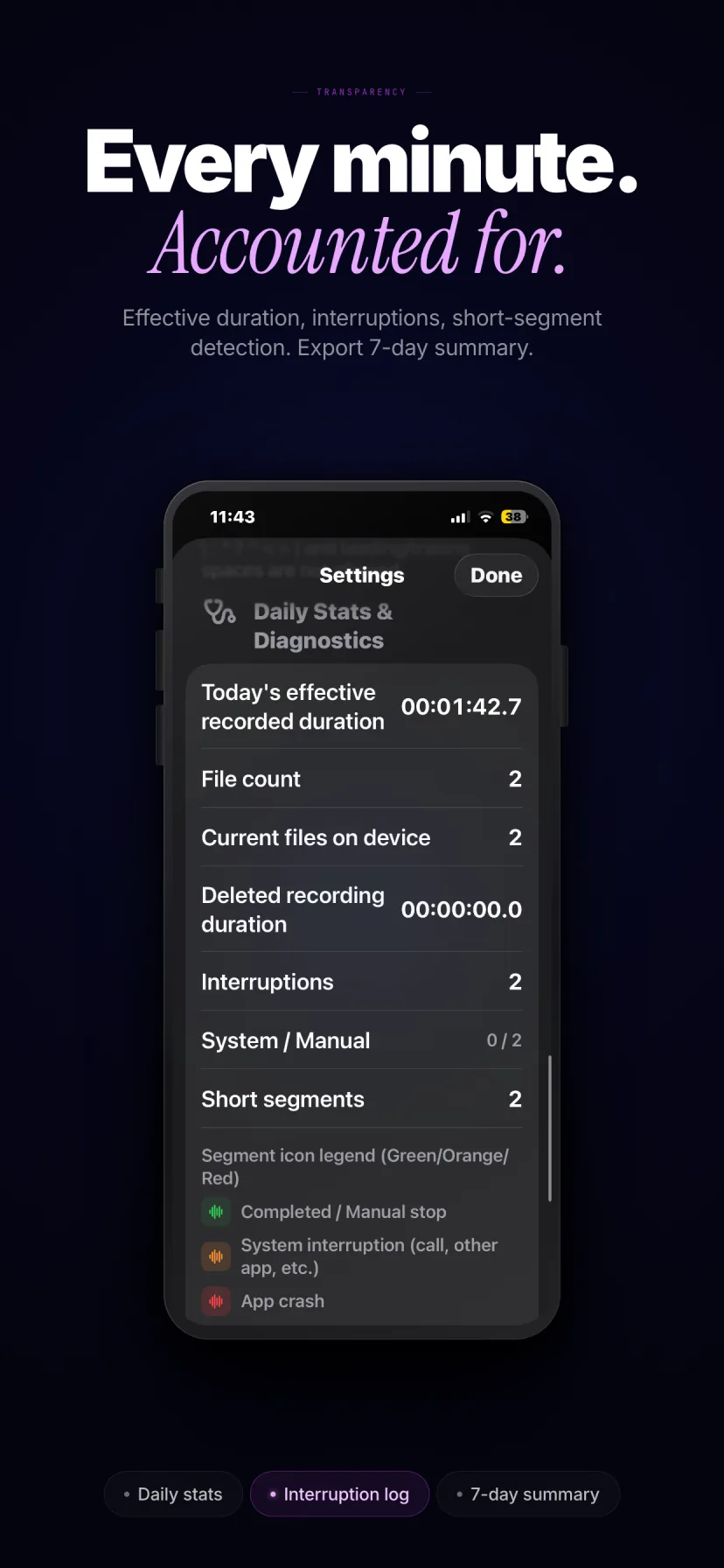
Try the built-in option first
For an occasional lecture, open Voice Memos, make a short recording and play it back. Place the phone where the speaker is clear and the microphone is unobstructed. Follow the venue’s recording policy and get the permission you need before recording other people.
Voice Memos can record while you use another app, but Apple says it stops if that app starts playing audio. See Apple’s recording instructions. It also has transcription on supported iPhones, languages and regions; you may not need another app.
Before the room fills up
- Check free storage. Open Settings → General → iPhone Storage. Make a sample at your chosen quality and inspect its size; leave room for the session and export copies. A fixed MB-per-hour claim would hide differences between settings and files. Apple’s storage guide explains where to check.
- Plan for power. Charge the phone and bring a suitable power source for a long session. There is no universal battery-use percentage for a three-hour recording.
- Review Do Not Disturb. A Focus can reduce distractions, but review allowed people, apps and repeated-call exceptions. It does not reserve the microphone or make calls impossible. See Apple’s Focus settings.
- Test Low Power Mode deliberately. Apple says it reduces background activity. It is not a recording-reliability switch. Test your actual setup in the mode you will use, rather than assuming it either fixes or always stops recording. Low Power Mode details.
- Run a lock-screen check. Record for a minute, lock the screen, unlock and listen back. Then test the camera or other actions you expect to use, before the important session.
Make a long session easier to handle
Choose MemoK when file organization and recovery attempts are part of the job. Set an automatic segment length between 1 and 180 minutes: for example, 30-minute segments can make a three-hour lecture easier to review. That is a file-management choice, not a promise of uninterrupted capture or a total recording limit.
- Check the selected recording location and available storage. Recordings are local by default; version 1.3.2 also offers a user-selected local or cloud folder. A cloud provider controls that folder’s availability.
- Set the segment length, audio quality and cleanup limits. Star important recordings and export a copy you can verify.
- Start recording and confirm that it is active. For recurring work, MemoK also has daily recording windows and all-day mode; check the app’s status before the session rather than treating a schedule as a guaranteed wake-up service.
- Add your own Quick Notes for a topic change, a question or a passage to revisit. They are manual notes, not a transcript.
MemoK is a paid App Store download with no account, ads, in-app purchases or subscription. The US price checked on 20 October 2026 is $1.99; your region’s store sets its price. See MemoK’s features and current facts.
Check the recording when you return
During a phone call, MemoK does not record the call. It prioritizes preserving the existing recording and attempts to resume microphone recording after the interruption ends and iOS makes the audio session available. The missing interval cannot be recovered afterward.
A quick switch to Camera or voice dictation can also affect the audio session. MemoK has interruption-handling logic, but neither a photo nor a return to the app proves the microphone stayed active. Reopen MemoK, check the recording state and elapsed progress, and listen to a saved segment when practical. If it has not resumed, restart recording and note the gap.
For a session where losing any interval is unacceptable, arrange a separate recording plan with the organizer. Automatic recovery is useful, but it is not a replacement for checking.
Leave with audio you can open elsewhere
Stop at the end and play back a sample from the beginning, middle and end. Check segment times and interruptions before assuming you have the whole event. In MemoK, select the recordings you need and export them through the iOS share sheet. Choose Save to Files or an available transfer option, such as AirDrop to a Mac. Quick Notes travel with the audio as Markdown when present.
Custom export filenames can give the files a consistent prefix, suffix or template; they affect exported copies. Open the exported audio and note files at the destination before removing anything from the app. If you want transcription or AI summaries, choose a separate tool and decide whether its processing and privacy terms suit the recording. MemoK does not provide those services.
Choose something else for these needs
- Phone calls or another app’s internal audio: MemoK does not capture those streams.
- Invisible recording: iOS displays its normal microphone privacy indicator. MemoK does not hide it. Apple explains the orange indicator.
- Built-in transcription or AI summaries: MemoK has neither. Quick Notes are your own text.
- A guaranteed three-hour file with no gaps: power, storage, system interruptions and the device still matter.
MemoK supports iPhone and iPad with iOS or iPadOS 16.0 or later. Its interface languages are English, Arabic, French, Italian, Simplified Chinese and Spanish.
Frequently asked questions
The details before you begin
Can an iPhone record a three-hour lecture?
A long microphone recording is possible with suitable power, storage and settings, but there is no universal guarantee for every device and interruption. Test your setup first. MemoK’s 1–180-minute setting controls individual segments, not the total session.
Will recording continue with the screen locked?
MemoK supports background microphone recording after you start it with permission. Test a short lock-screen recording before the session. iOS audio-session rules still apply, and the normal microphone privacy indicator remains.
Does Do Not Disturb prevent every recording interruption?
No. Focus settings can have allowed contacts, apps and repeated-call exceptions. Do Not Disturb does not reserve the audio session or guarantee continuous recording.
Will MemoK resume after a phone call?
It attempts to resume microphone recording after the interruption ends and iOS releases the audio session. It does not record the call, and a gap may remain. Return to MemoK and verify that recording has resumed.
How much battery or storage do I need?
There is no fixed figure that applies to every phone, quality setting and session. Check free storage, measure a short sample at your chosen quality, leave space for exports and plan a power source. Test Low Power Mode in the setup you will actually use.
Does MemoK turn my lecture into an AI summary?
No. MemoK has no built-in transcription or AI summary. You can add Quick Notes yourself and export audio with Markdown notes to a separate tool you choose.
Sources & scope
Written by MemoK’s developer. Checked 20 October 2026 against the US App Store listing, MemoK’s app source and store copy, plus the Apple documentation linked above. MemoK repository and privacy information.